VirtuaTilt Wiki › Loading a Profile into Your VirtuaTilt
Loading a Profile into Your VirtuaTilt
All profile loading is done from GUIConfigTool with the cabinet connected via USB. You only need the USB connection during profile loading — once the profile is on the cabinet you can unplug USB and play wirelessly.
You only need to do this when you want to add or change a profile. Your cabinet already ships preloaded with profiles mapped to its buttons, so for everyday game switching you simply hold the right button while the cabinet boots (see the Profile-Identity LED chapter) — no PC required. You are not loading anything "again".
Configuration tab vs Profiles tab — which is which? The Configuration tab → File → Import from File → Program Pico flow described here writes the default profile: the one the cabinet runs at boot when you do not hold any button. The button-mapped profiles already on your cabinet live in the Profiles tab; to run one of those, just hold its button while the cabinet boots. So importing here only sets the default (or adds a new profile) — it does not replace the button-mapped profiles already on the cabinet.
Step-by-step:
- Open GUIConfigTool with the cabinet plugged in via USB.
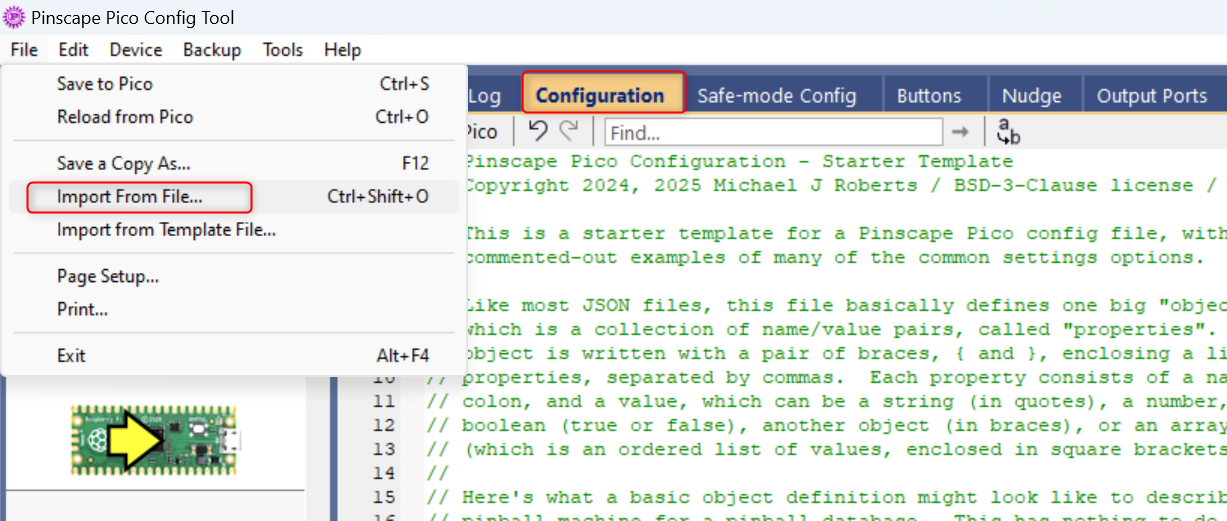
- Click the Configuration tab.
- Use the File menuImport from File to open the .json profile you want from the redist profiles/ folder.
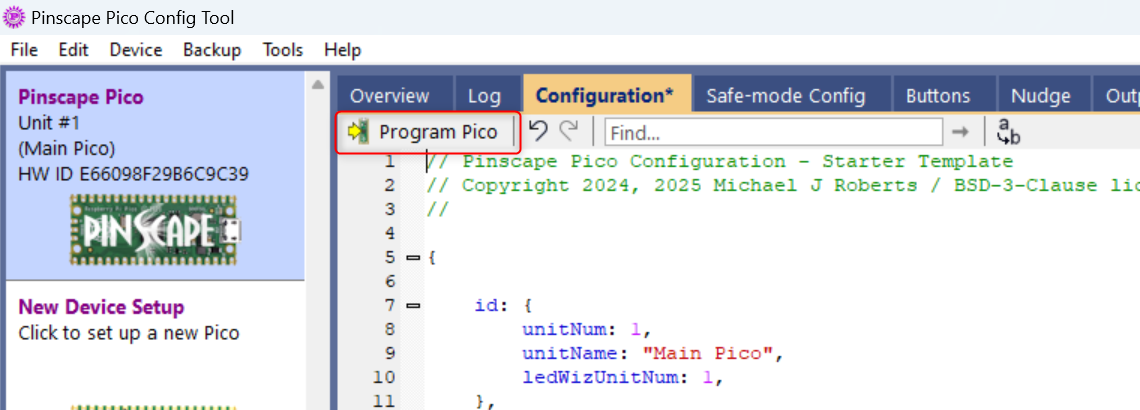
- Click "Program Pico" to write the profile to the cabinet, then confirm the save dialog.
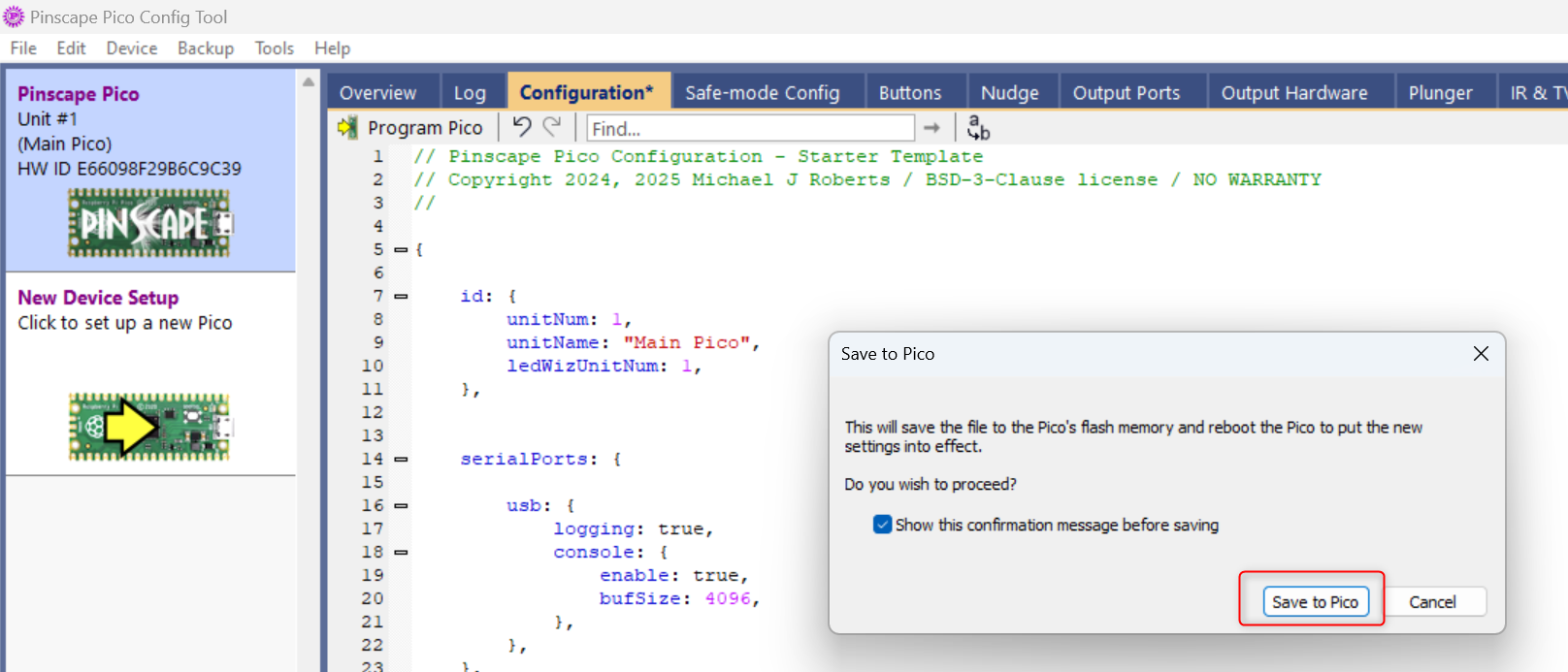
- Wait a few seconds. The Pico will reboot automatically, running the profile you just programmed as the default. The LED stays off unless you hold down one of the programmed buttons at boot to load its profile (see the Profile-Identity LED chapter).
After you program a Bluetooth profile, the cabinet restarts its Bluetooth module by itself: wait about 15 seconds — the cabinet then shows up with the new profile's name and controller type, ready to pair on your Quest or PC. If your Quest or PC is connected to the cabinet at that moment, the change waits until it disconnects (or switch the cabinet off and on).
Why the wait: the cabinet now applies the new profile on its own, so you no longer need to switch it off and on. It restarts its Bluetooth module with the new profile, just as at power-on, so your Quest or PC always finds the right name and controller type. While it starts, the module also checks over Wi-Fi whether the VirtuaTilt Updater is offering a firmware update. All in all it takes about as long as switching the cabinet off and on, and you don't have to touch it.
That’s it — your VirtuaTilt is now running the new profile. Now go to the next chapter to pair it with your Quest or PC.
NOTE: Pinscape Pico saves the profile in the cabinet's flash memory, so it persists across power-cycles and stays loaded until you push a different profile.
For full details on the JSON profile format: http://mjrnet.org/pinscape/PinscapePico/Help/JSONConfigRef.htm
The interactive VirtuaTilt wiki adds a 3D model, a theme gallery and a built-in AI assistant — open the wiki.
Last updated: 2026-10-28
VirtuaTilt is designed and manufactured by 3DPTronics — see the Wireless VirtuaTilt controller. Diagnose your own cabinet with the free VirtuaTilt extension for Claude.