VirtuaTilt Wiki › Firmware Update
Firmware Update
Your Wireless VirtuaTilt ships with the latest firmware on both the Pico and the wireless module. If a future update is released, you can flash it as follows.
- The Pico firmware and the wireless module firmware are released as a matched pair. You do not have to install every update, but when you do, update both, using the files of the same package: first the Pico (A.1), then the wireless module (A.4). Then open GUIConfigTool → Overview: the Pico and the ESP32 module must both show Firmware status: up to date.
- To go back to an earlier version, flash both chips with that version and load your profiles again.
A.1 — Pico firmware update (USB)
- Make sure your VirtuaTilt is plugged in via USB and detected in GUIConfigTool.
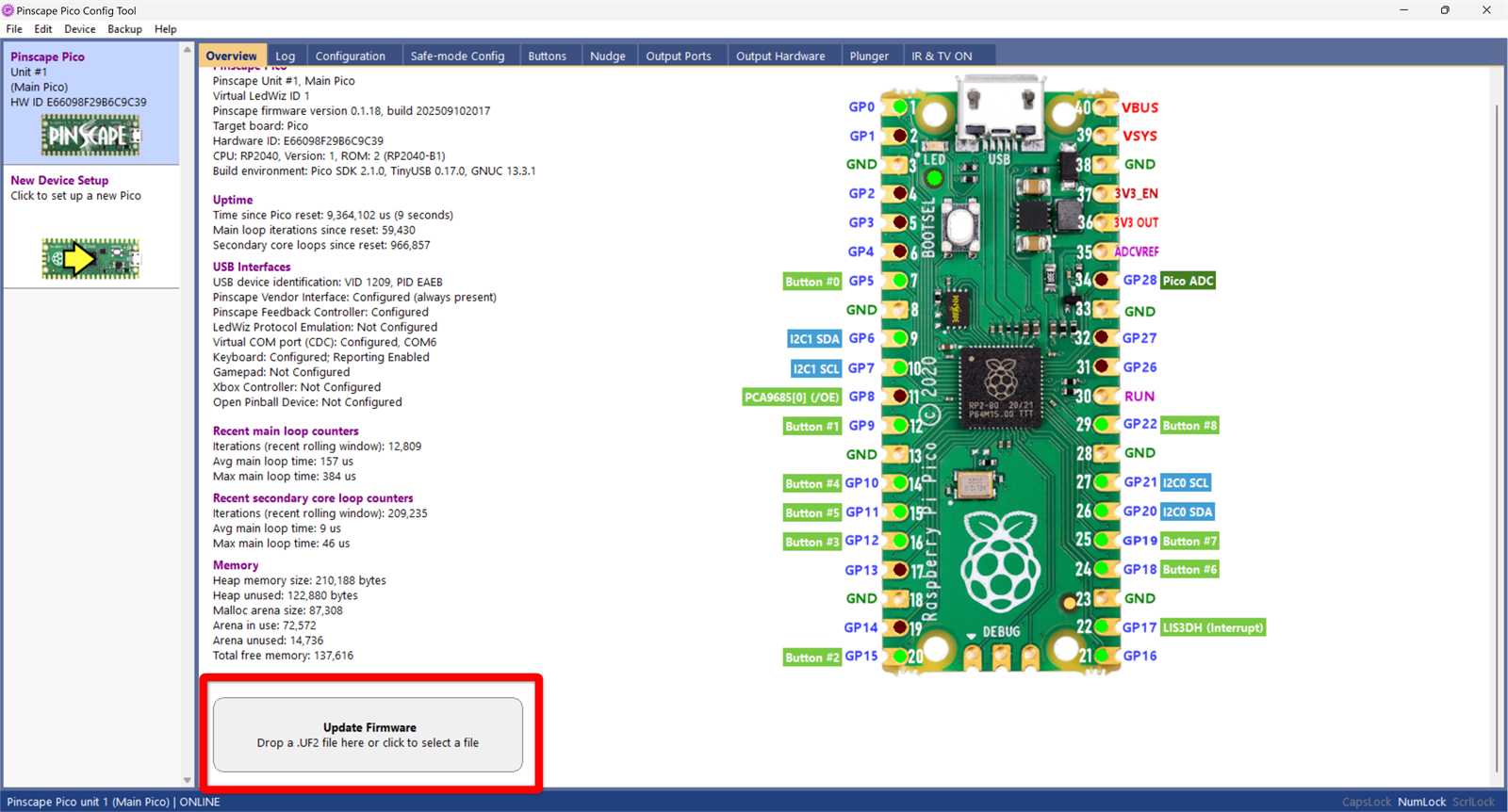
- Open GUIConfigTool → Firmware tab (or the Update area on the Overview tab).
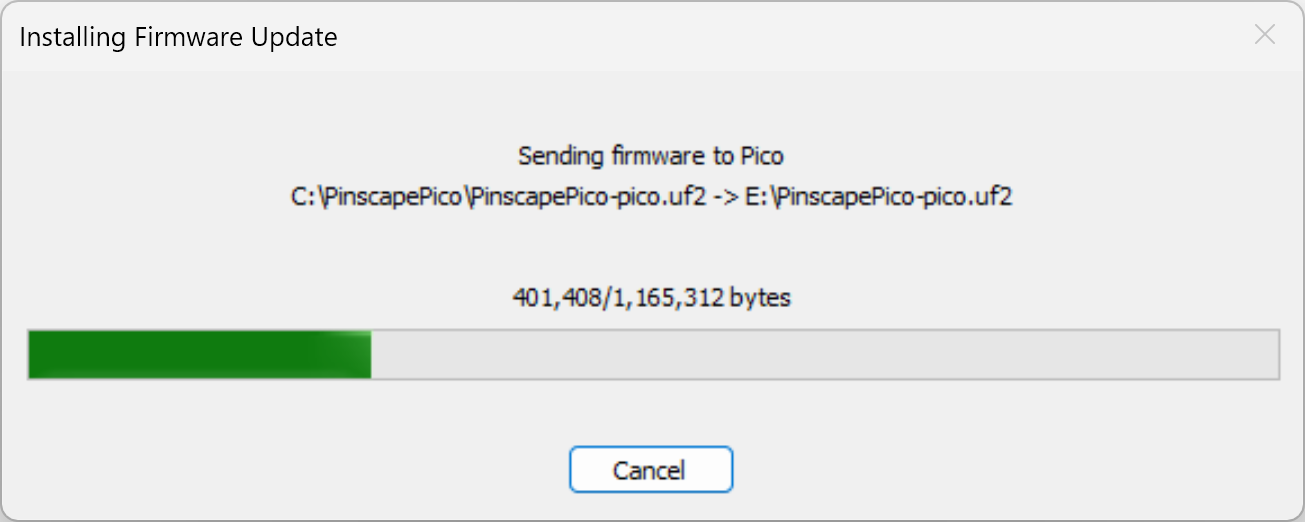
- Drag and drop the firmware/PinscapePico.uf2 file from your redist into the Update area.
- Wait for the cabinet to flash and reboot. Profile and calibration settings are preserved.

A.2 — Wireless module firmware updates — when and why
The wireless module firmware controls Bluetooth pairing and analog reporting. New firmware releases may add features, fix bugs, or improve game compatibility. When an update is released, update the wireless module together with the Pico (see the start of this appendix).
When you do need to update, the procedure is:
- One-time: configure the wireless module's Wi-Fi credentials so it can reach your PC (see A.3 below). You only do this once per home network.
- Whenever a new firmware is released: run the Updater Tool, click "Start update server", reboot VirtuaTilt — the module downloads the new firmware over Wi-Fi automatically (see A.4).
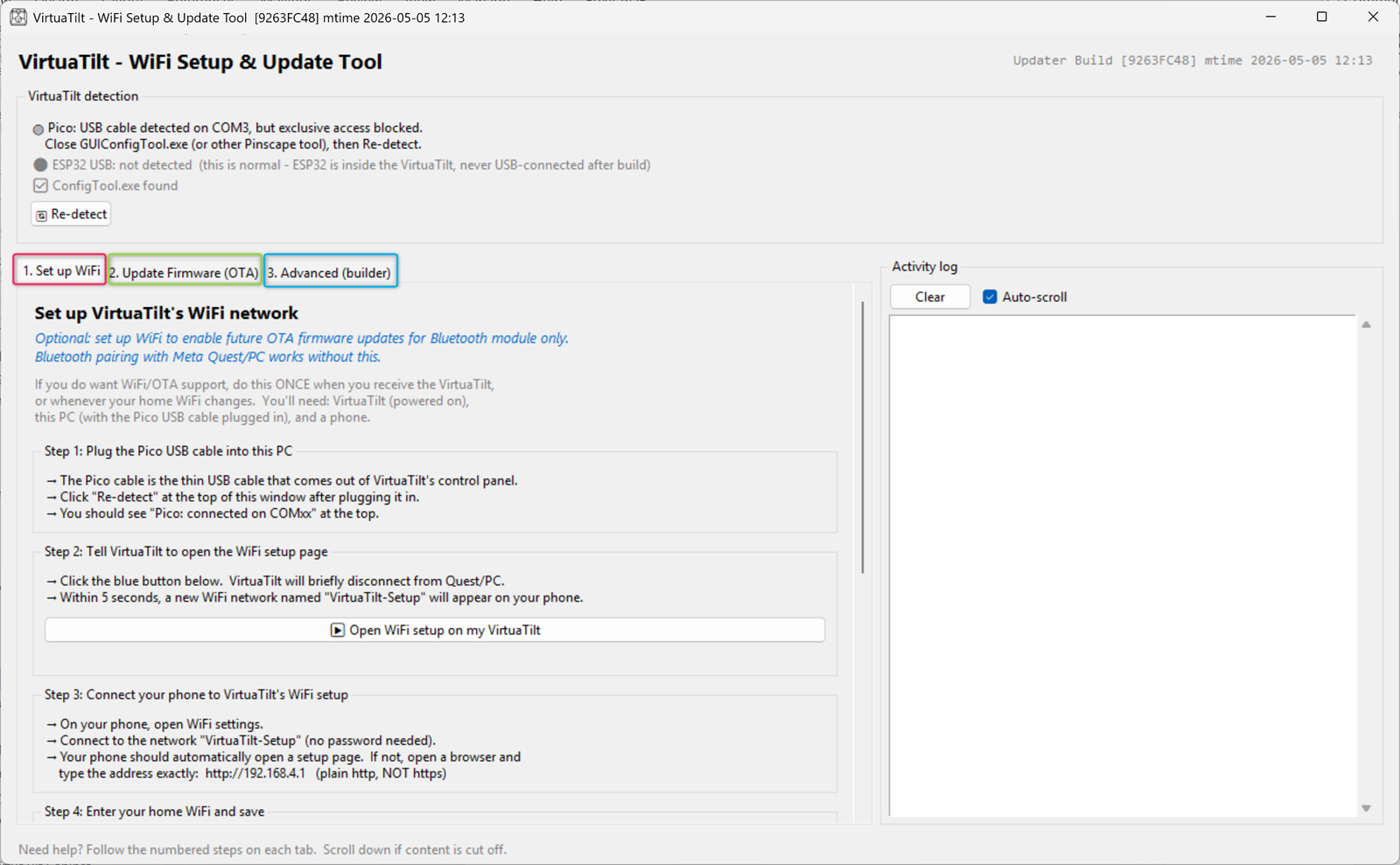
Both steps use the same tool: "VirtuaTilt Wireless - Bluetooth Firmware Update Tool.exe" in the tools/ folder of your redist. The tool does everything through the Pico USB cable that is already plugged into your VirtuaTilt — no extra cables, no need to open the cabinet.
NOTE: The Wi-Fi setup is OPTIONAL. Bluetooth pairing with Quest or PC works perfectly without it. You only need Wi-Fi setup if you want to receive future over-the-air (OTA) firmware updates. If you skip it, you can still update the wireless module firmware over USB yourself: open the cabinet, unplug the micro-USB cable from the Pico and connect it to the ESP32 module, then flash it from your PC.
A.3 — One-time Wi-Fi setup (required ONLY for OTA updates)
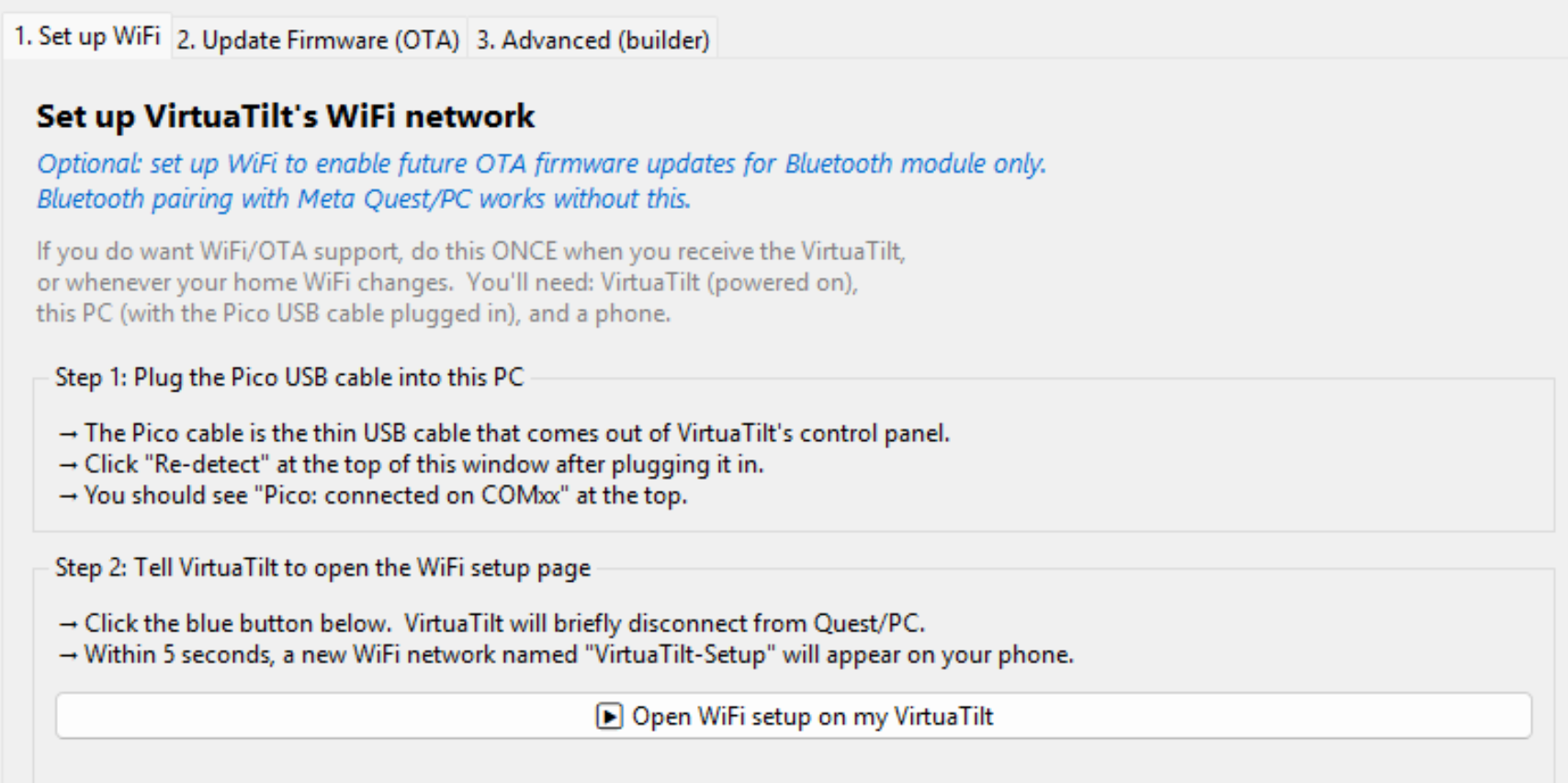
The Updater Tool walks you through Wi-Fi setup with a numbered step-by-step wizard on Tab 1 ("Set up WiFi"). The whole procedure takes about 3 minutes and uses only the Pico USB cable on your VirtuaTilt plus a phone (any iPhone, Android, or laptop with Wi-Fi works).
Step-by-step (these are the EXACT steps shown by the Updater Tool):
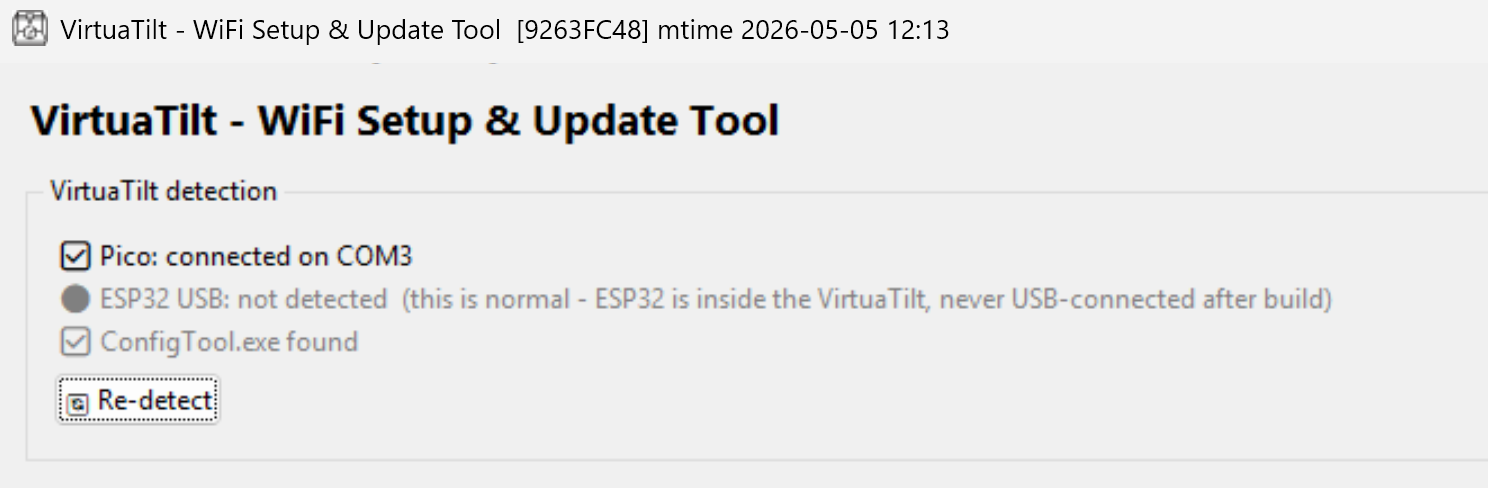
- Step 1 — Plug the Pico USB cable from your VirtuaTilt into this PC. The tool detects the cabinet automatically and shows "Pico: connected on COMxx" at the top of the window.
- Step 2 — In Tab 1, click the blue "▶ Open WiFi setup on my VirtuaTilt" button. VirtuaTilt briefly disconnects from Quest/PC and switches into Wi-Fi setup mode. You will see a confirmation message: "Done! Within 5 seconds your phone will see VirtuaTilt-Setup WiFi. Continue to Step 3."
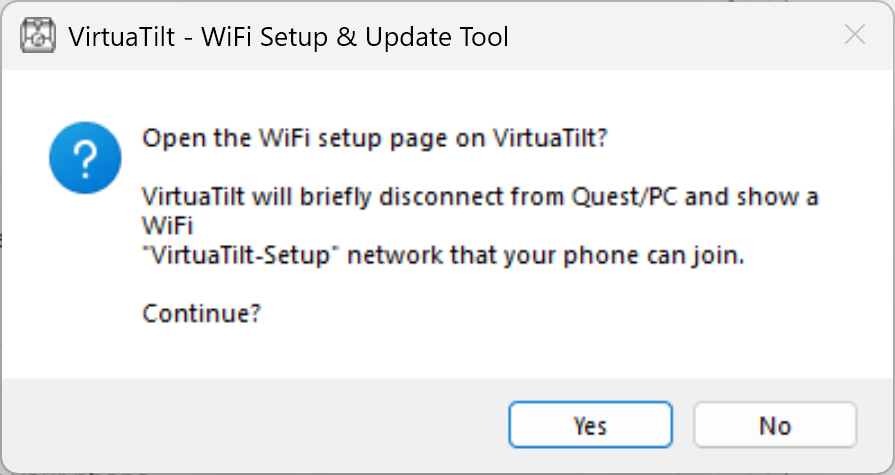
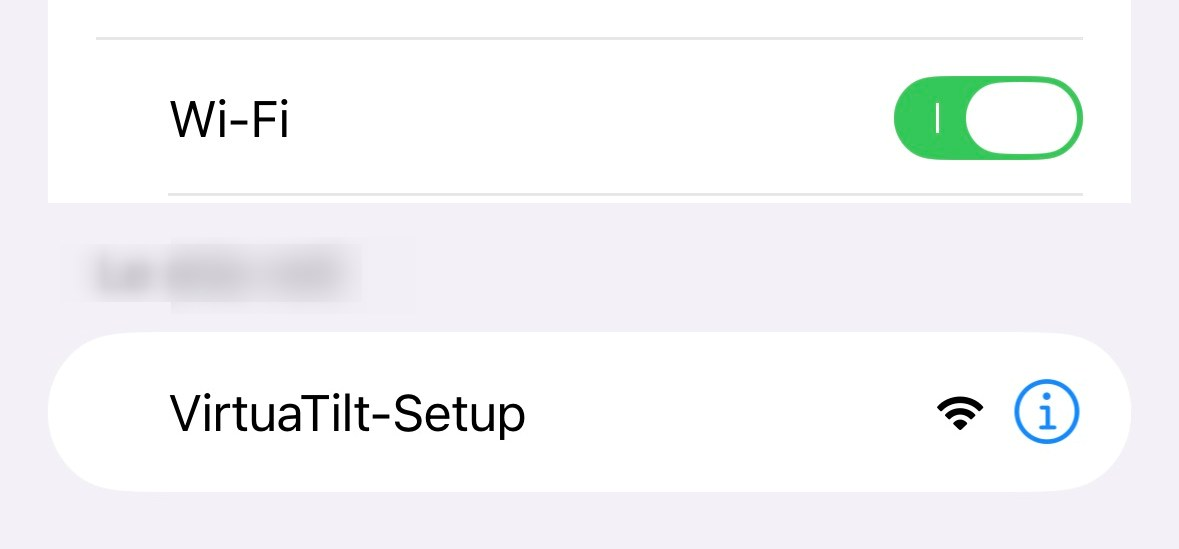
- Step 3 — On your phone (or any laptop with Wi-Fi), open Wi-Fi settings. A new network called "VirtuaTilt-Setup" appears in the list. Connect to it. NO PASSWORD is required — the network is open. Most phones automatically open the captive-portal page in your browser. If the page does not open by itself, open a browser and type the address exactly: http://192.168.4.1 (note: plain http, not https).
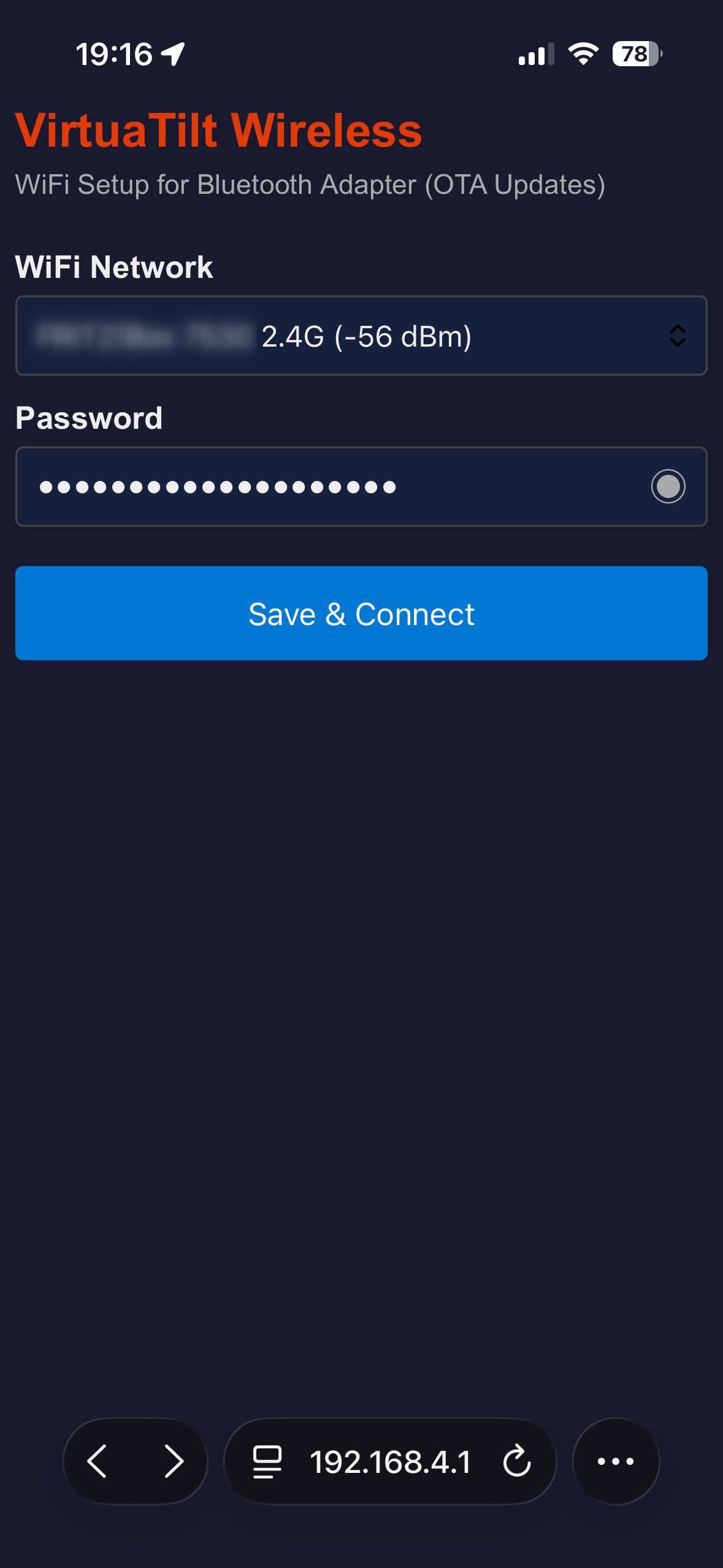
- Step 4 — On the captive-portal page, pick your home Wi-Fi network from the dropdown list, type your home Wi-Fi password, then tap "Save & Connect". VirtuaTilt saves the credentials, reboots (about 10 seconds), and connects to your home Wi-Fi. Your phone will automatically disconnect from "VirtuaTilt-Setup" because the temporary network is gone.
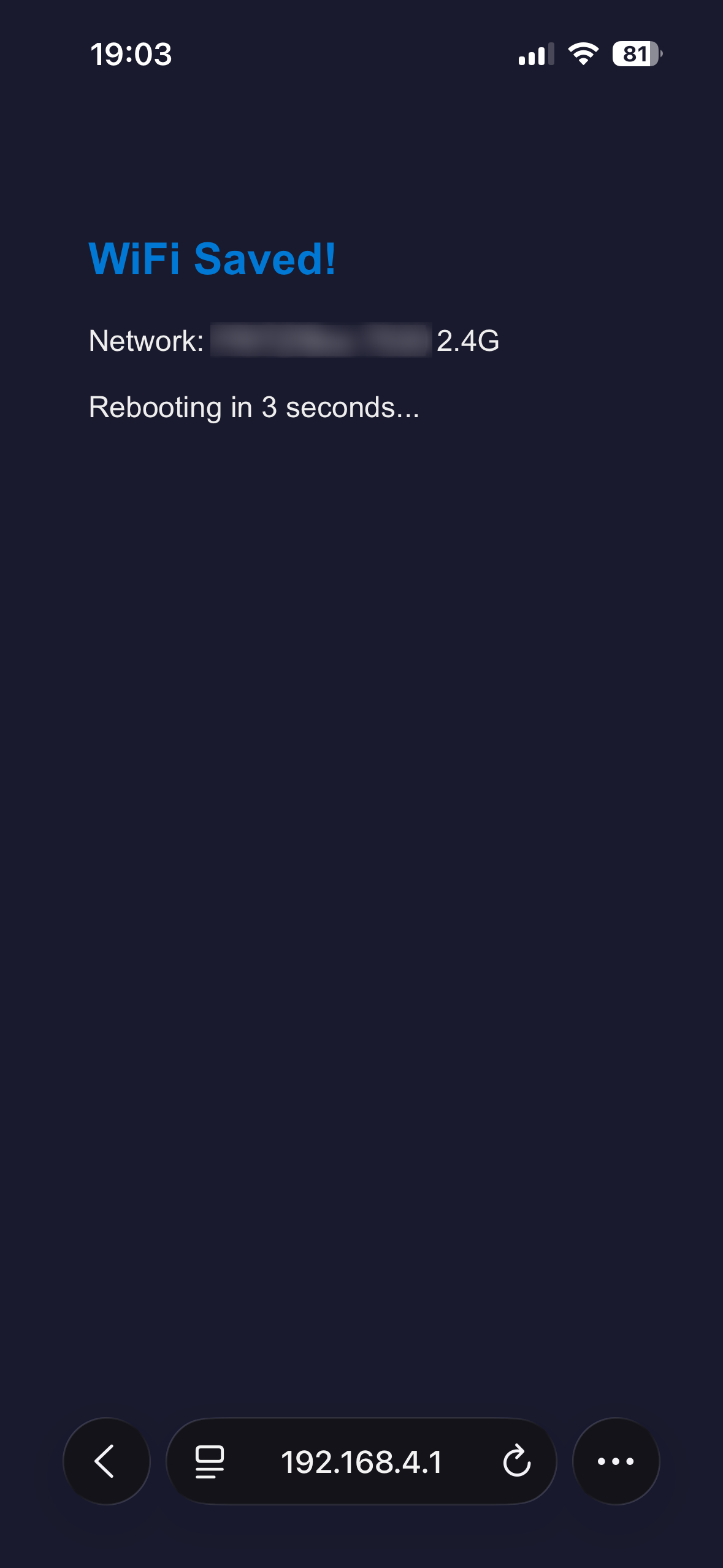
- Step 5 — Back in the Updater Tool, click the green "✓ Done — clear setup flag" button. This clears the one-shot Wi-Fi-setup flag so the cabinet does not re-open the captive portal on the next reboot.
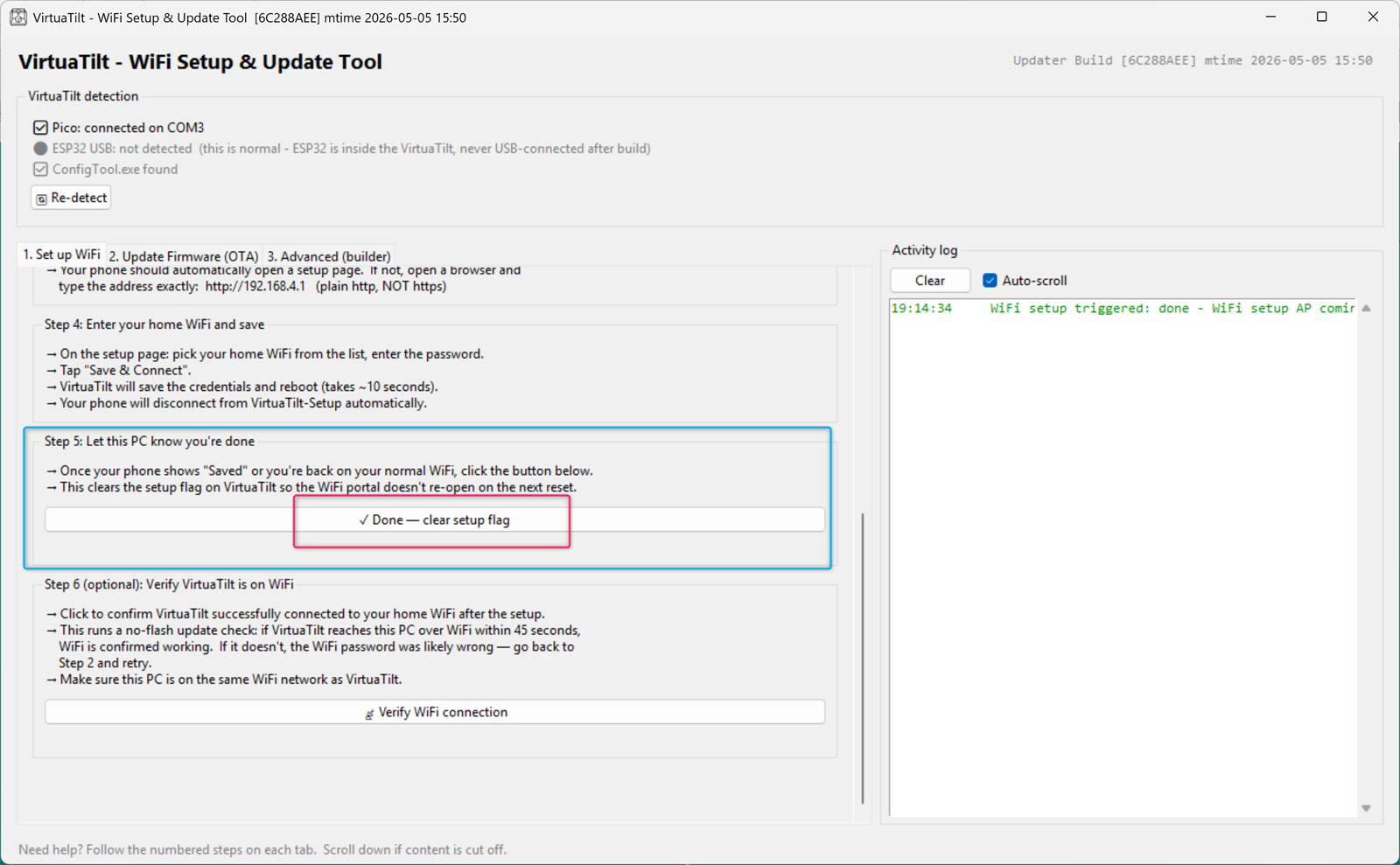
- Step 6 (optional) — Click "📡 Verify WiFi connection". The tool checks that VirtuaTilt really did join your Wi-Fi network (it expects a contact within 45 seconds). If the check passes, your Wi-Fi setup is confirmed working and you are ready to use OTA. If the check fails, the most likely reason is a wrong Wi-Fi password — go back to Step 2 and retry.
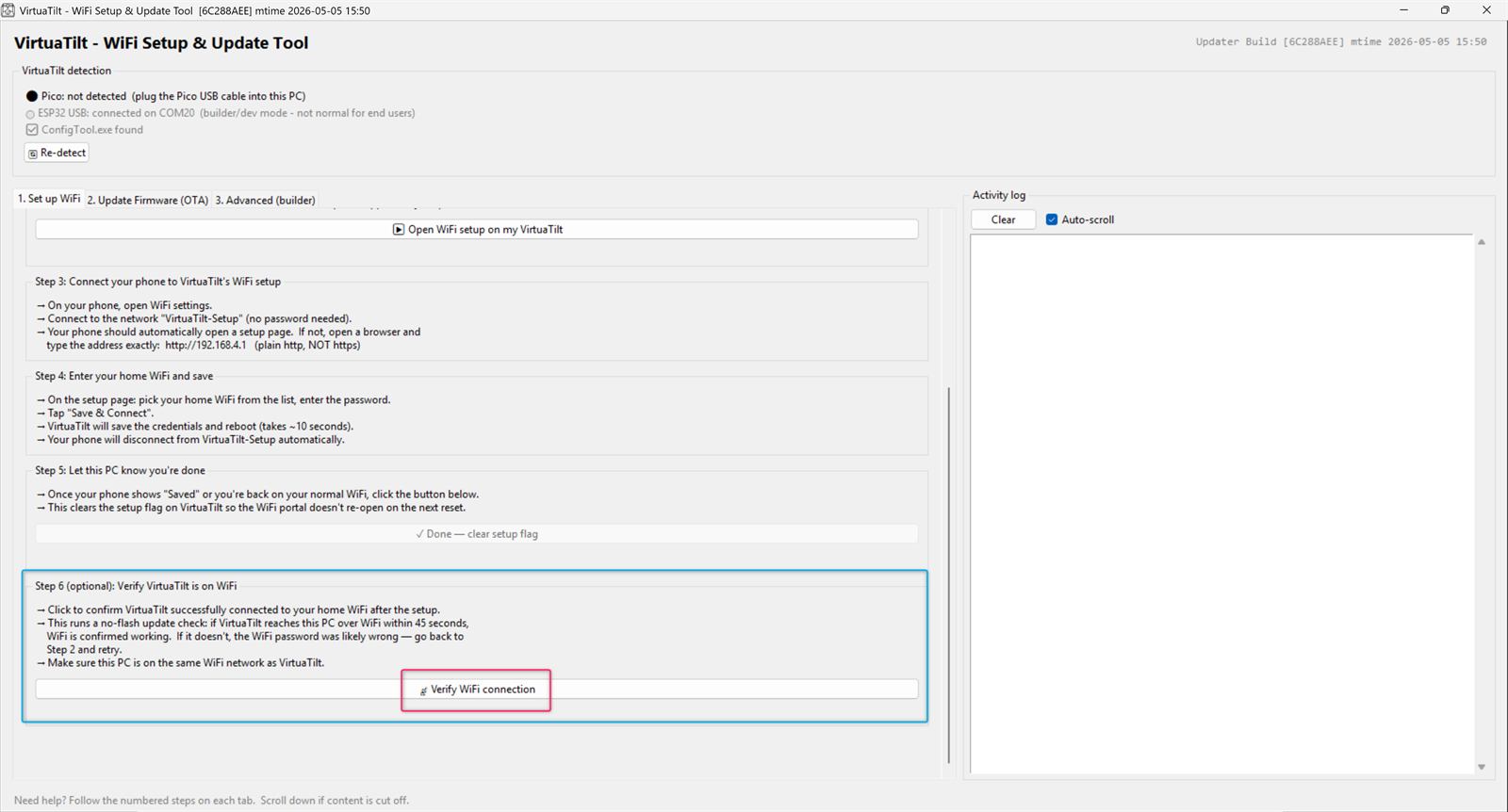
NOTE: "VirtuaTilt-Setup" is an OPEN Wi-Fi network with no password — that is intentional. The network is only broadcast for ~2 minutes during the setup window, accepts only one client (your phone) at a time, and disappears as soon as you save your home Wi-Fi credentials. It does not stay broadcasting on your home network.
NOTE: The profile-identity LED on your cabinet does NOT change color during Wi-Fi setup mode. Treat the Updater Tool window as your single source of truth for what state VirtuaTilt is in — the buttons and status messages in Tab 1 always reflect the current step.
NOTE: You only need to do Wi-Fi setup once per home network. Your credentials persist through power-cycles and firmware updates. If your home Wi-Fi password or router changes, repeat Tab 1 to reconfigure.
A.4 — Performing an OTA firmware update
Prerequisites: Wi-Fi setup completed (A.3), your PC and VirtuaTilt are on the same Wi-Fi network, and Windows Firewall is not blocking the Updater Tool.
Tab 2 ("Update Firmware (OTA)") has a numbered three-step procedure:
Step 1 — Firmware to install. The latest firmware.bin is bundled INSIDE the Updater Tool (no need to download or browse separately) and selected by default. The tool shows the bundled firmware's name, size, hash, and date so you can confirm what you are about to flash. If you want to flash a different firmware (e.g. a beta), click "Change..." and browse.
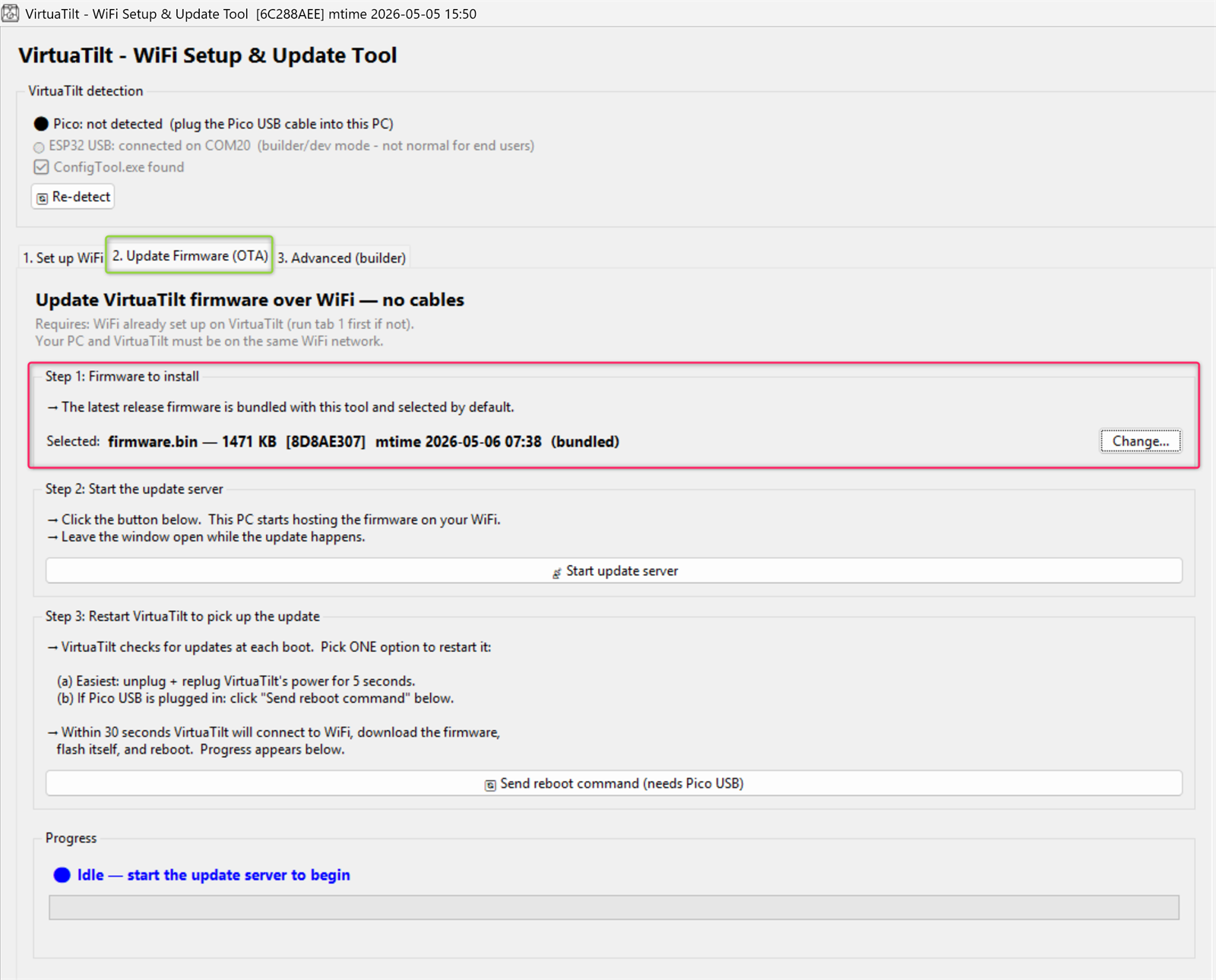
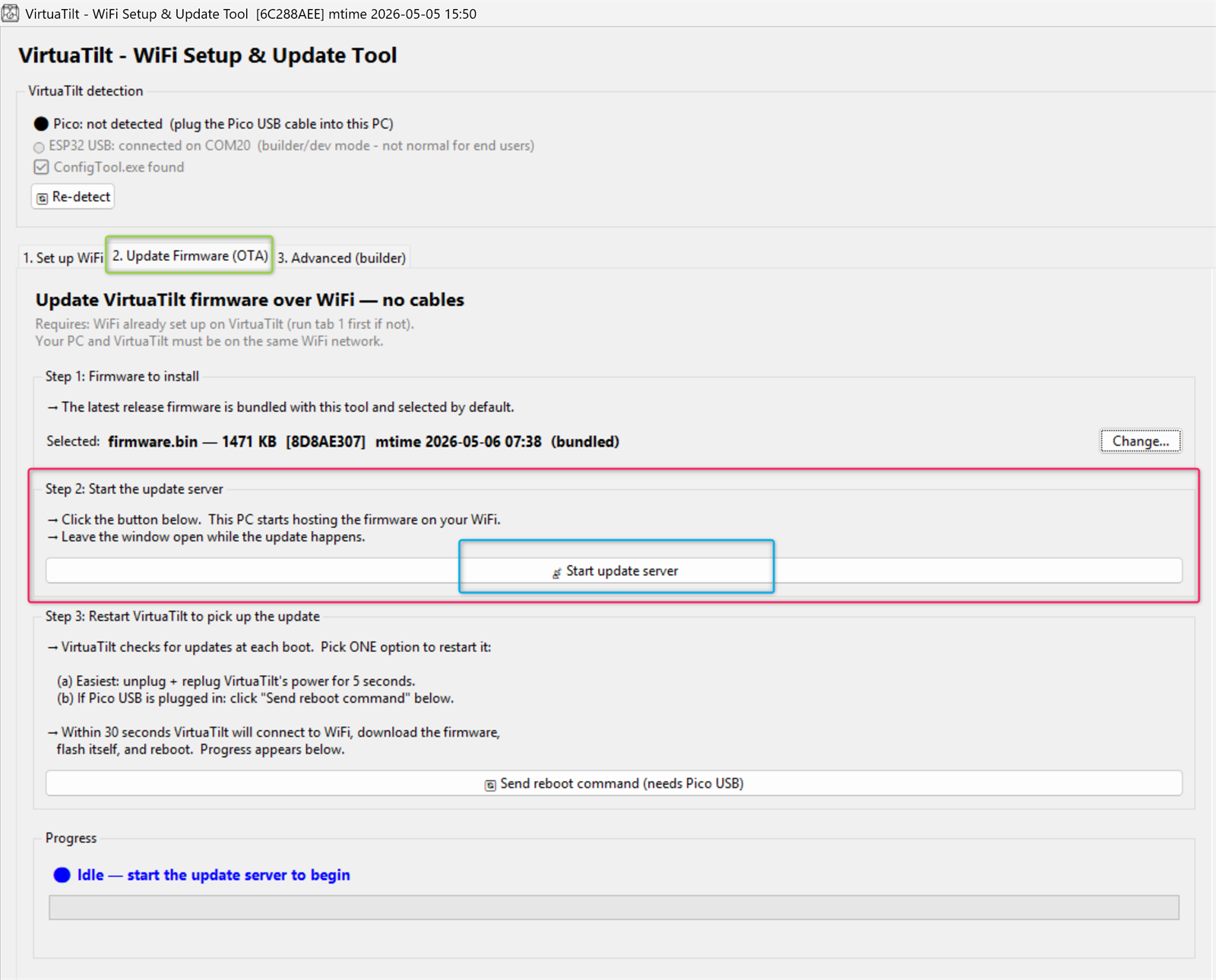
Step 2 — Click "📡 Start update server". The Updater Tool starts hosting the firmware on your local Wi-Fi network. The button changes to "⏹ Stop update server" while the server is running. Leave the Updater Tool window open during the update.
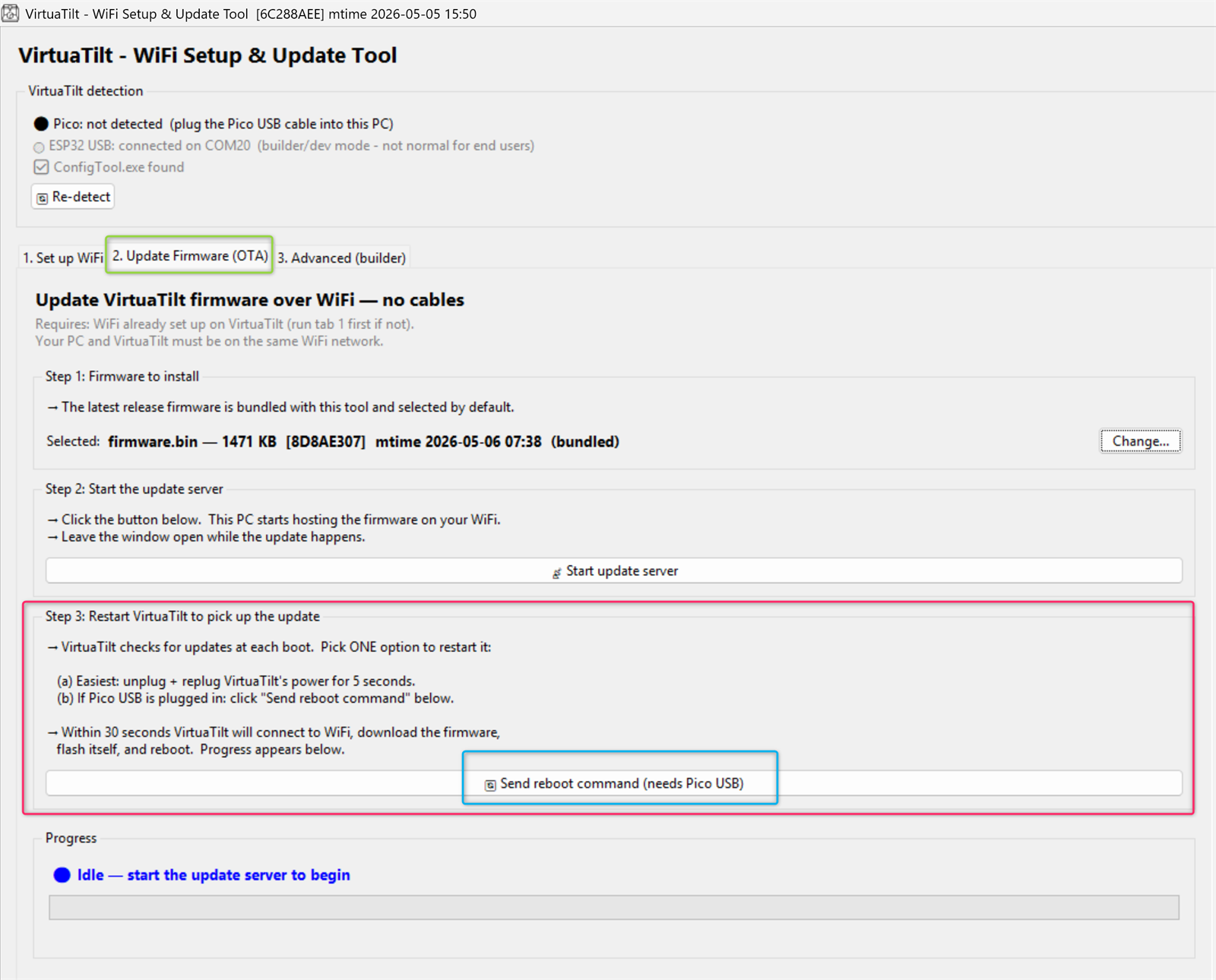
Step 3 — Reboot VirtuaTilt so it picks up the update. You have two options: (a) Easiest — unplug and replug VirtuaTilt's power cable for 5 seconds. Or (b) If the Pico USB cable is still plugged in, click "🔄 Send reboot command (needs Pico USB)" — the tool will reboot the wireless module remotely.
Within 30 seconds VirtuaTilt boots, joins Wi-Fi, contacts the Updater Tool, downloads the new firmware, flashes it, and reboots into the new version. The Progress panel shows live status: discovery, download progress (with percentage and bytes), and completion.
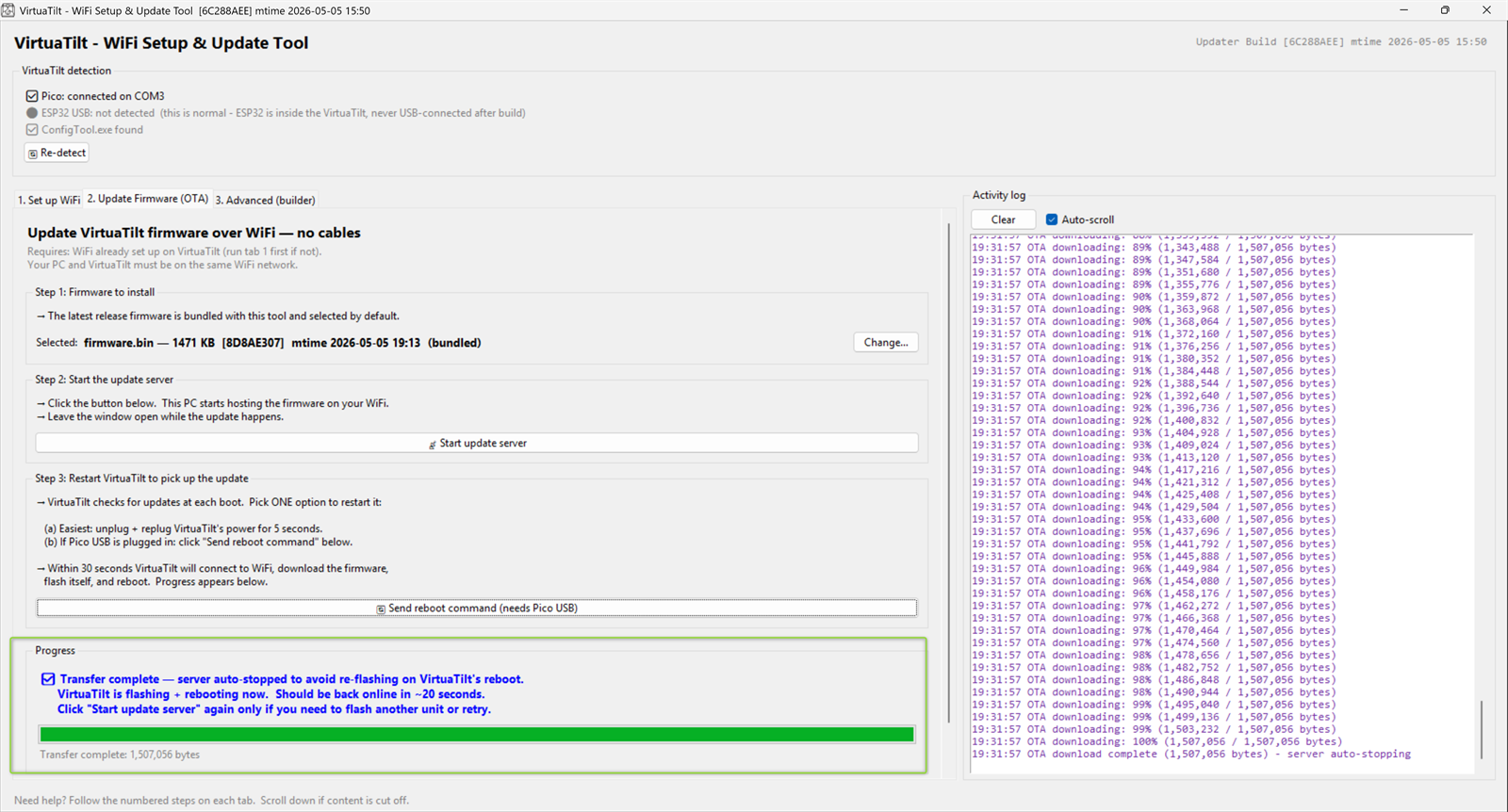
When the Progress panel says Firmware file sent, the tool stops the server by itself. VirtuaTilt then checks the file and restarts within about 20 seconds — with the new firmware if the check passes, otherwise with the firmware it had. Confirm the result in GUIConfigTool → Overview (Firmware status: up to date).
NOTE: After a wireless firmware update, you should forget the previous pairing on every host device (Quest, PC) and re-pair fresh. The Bluetooth identity stays the same, but cached HID descriptors on the host may become inconsistent across major firmware versions.
A.5 — Troubleshooting OTA updates
"VirtuaTilt-Setup" Wi-Fi network does not appear on your phone after Step 2: wait the full 5 seconds. If still not visible after 10 seconds, click the button again. The Wi-Fi-setup mode lasts about 2 minutes — if you take longer than that to connect your phone, click the button again to retrigger.
While the setup network is up, the cabinet's Bluetooth is off. If you don't finish the setup, VirtuaTilt leaves setup mode on its own after about 2 minutes without a phone connected, restarts, and its Bluetooth comes back about 10 seconds later (with a Bluetooth profile active).
Captive portal page does not open automatically: open a browser manually and type http://192.168.4.1 — note the http:// prefix (NOT https://). On some phones you may need to disable mobile data temporarily so the phone uses the VirtuaTilt-Setup Wi-Fi instead of falling back to cellular.
After "Save & Connect", VirtuaTilt does not connect to your home Wi-Fi: most likely a typo in the password. Run Step 6 ("Verify WiFi connection") to confirm — if it fails, redo Step 2 and retry with the correct password.
OTA update never starts after rebooting VirtuaTilt: check that this PC is on the same Wi-Fi network as VirtuaTilt (same SSID, same subnet). Also check Windows Firewall — allow the Updater Tool inbound on UDP 4210 and TCP 8080 (Private + Public networks). The Updater Tool will warn you if a port is busy.
OTA update fails partway: most likely a weak Wi-Fi signal at the cabinet. Move your router closer or add a mesh node, then retry from Step 2.
Updater Tool does not detect the Pico: make sure GUIConfigTool is closed (it locks the Pico HID interface). Replug the Pico USB cable, then click "Re-detect" at the top of the Updater Tool window.
If Wi-Fi OTA is not feasible for your setup (no Wi-Fi at all, very weak signal, restricted router), the wireless module can still be reflashed via a direct micro-USB cable. This method requires opening the cabinet briefly, but it works without any Wi-Fi, OTA, or PC discovery — see the next chapter.
A.6 — Recovery flash via micro-USB (cabinet open)
When Wi-Fi OTA is not an option — for example it isn't working for you because of network restrictions (router/firewall settings, a VPN, captive-portal or isolated guest Wi-Fi, etc.) — you can flash the wireless module the same way the builder did at the factory: by opening the cabinet and moving the cabinet's existing micro-USB cable from the Pico to the wireless module's programming connector. This method always works regardless of network conditions and does not require any prior Wi-Fi setup.
What you need:
Install the CH340 USB-to-serial driver if Windows doesn't auto-install it the first time you plug in the cabinet. Download from https://www.wch-ic.com/downloads/CH341SER_EXE.html — Windows admin install, restart not required.
The Updater Tool (tools/VirtuaTilt Wireless - Bluetooth Firmware Update Tool.exe).
A Phillips screwdriver (to open the cabinet — see Appendix E or the cabinet opening procedure in the original VirtuaTilt-RP2040 setup guide).
Step-by-step:
- Power down your VirtuaTilt and unplug the cabinet from mains power. You can leave the micro-USB cable connected to your PC — in the next steps you will move its cabinet end from the Pico to the wireless module.
- Open the cabinet (see the cabinet-opening appendix). Locate the wireless module — it is a small board mounted inside the cabinet, with a micro-USB programming connector on one edge.
- Inside the cabinet, disconnect the micro-USB cable from the Pico and plug it into the wireless module's (ESP32) micro-USB connector. Windows will detect a CH340 or CP210x USB-to-UART bridge and assign a COM port (typically COM20-30 range).
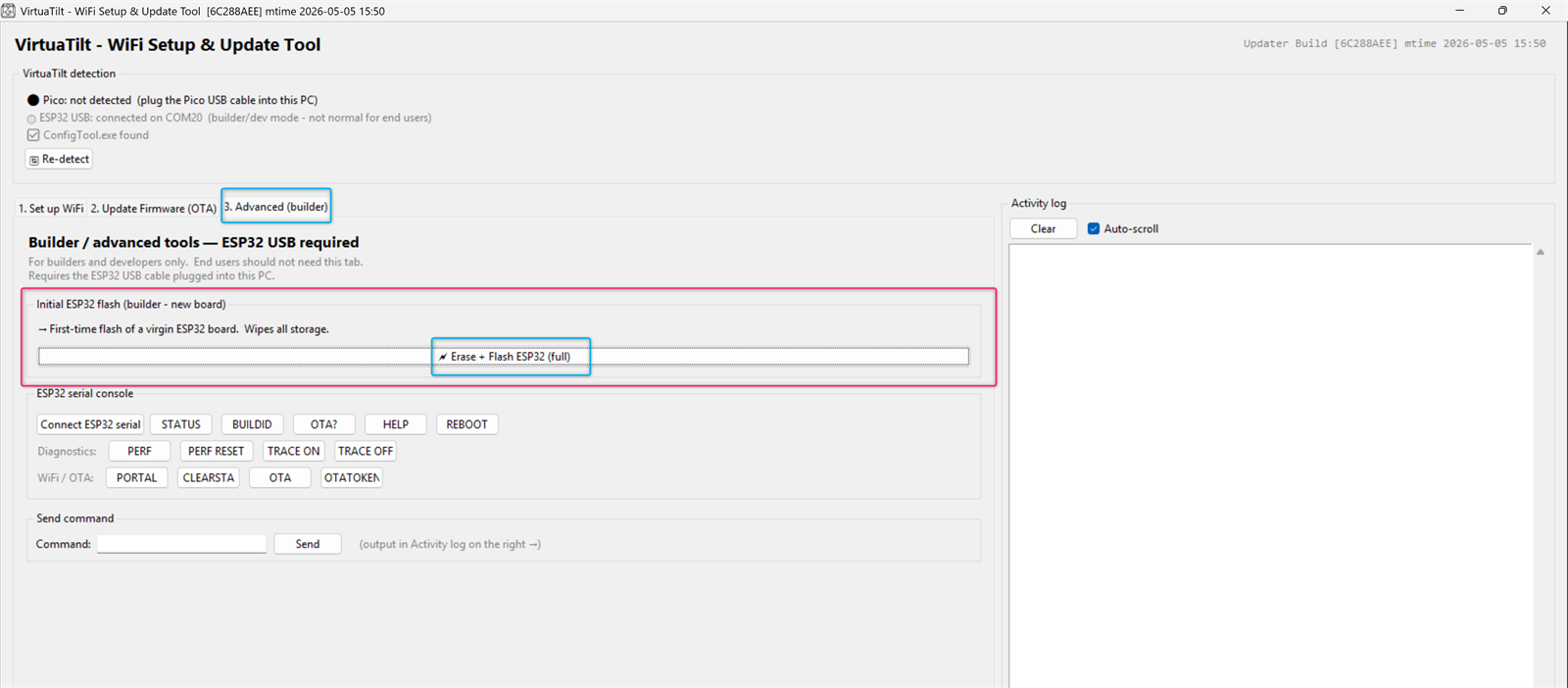
- Open the Updater Tool. Switch to Tab 3 "Advanced (builder)". This tab is normally for builders, but the recovery flash procedure here is also the right path for end users when Wi-Fi OTA is unavailable.
- In Tab 3 "Advanced (builder)", click Erase + Flash ESP32 (full) (in the "Initial ESP32 flash" box). The tool finds the module's USB port by itself (CH340 or CP210x chip); if it finds more than one, it asks which one to flash. This erases the module completely — its Wi-Fi settings, Bluetooth pairings and LED colours — and installs the firmware bundled in the tool in about 30 seconds. Afterwards, pair your Quest or PC again and, if you use OTA updates, repeat the Wi-Fi setup.
- Wait for the "Hash of data verified" success message at the end of each binary section. When all three (bootloader, partitions, firmware) are verified, the flash is complete.
- Disconnect the micro-USB cable from the wireless module and reconnect it to the Pico. Close the cabinet.
- Reconnect mains power. The wireless module boots into the new firmware automatically; you can resume normal Bluetooth pairing and gameplay.
NOTE: After a recovery flash, you should forget the previous pairing on every host device (Quest, PC) and re-pair fresh, exactly as you would after an OTA update. The HID descriptor cache on the host may be stale across firmware versions.
IMPORTANT NOTE: Do NOT have BOTH the cabinet powered through its normal power rail AND the micro-USB cable connected at the same time. Doing so feeds power to the wireless module from two sources simultaneously. Always have the cabinet powered down (mains unplugged) when plugging the micro-USB cable in for a recovery flash.
NOTE: The Updater Tool's Tab 3 is labelled "Advanced (builder)" because it also exposes serial diagnostics and other low-level features that builders use during cabinet assembly. End users only need the "Erase + Flash ESP32 (full)" button on that tab — the rest can be ignored.
The interactive VirtuaTilt wiki adds a 3D model, a theme gallery and a built-in AI assistant — open the wiki.
Last updated: 2026-10-28
VirtuaTilt is designed and manufactured by 3DPTronics — see the Wireless VirtuaTilt controller. Diagnose your own cabinet with the free VirtuaTilt extension for Claude.